iTop Screen RecorderIf you’re looking for a versatile and beginner-friendly screen recording tool, iTop Screen Recorder is one of the options worth exploring. Designed for Windows users, it offers a broad set of features, from recording gameplay to creating tutorials, capturing webinars, and even recording mobile devices. In this guide, you’ll learn everything you need to know about iTop Screen Recorder, including its features, safety, pros and cons, and tips for optimal use.
What is iTop Screen Recorder?
iTop Screen Recorder is a screen-capture software developed by iTop Inc. It allows users to record their desktop, a specific window, or a custom region on their computer. The software also supports device recording, letting you capture the screen of iOS and Android devices directly from your PC. Its main goal is to provide a simple, efficient, and high-quality recording experience for various use cases, including online classes, business presentations, and gaming content.
Key Features
Recording Options
You can record the full screen, a selected area, or a specific application window. The software also supports recording mobile devices, which is useful for app demos or mobile gameplay.
Audio and Webcam
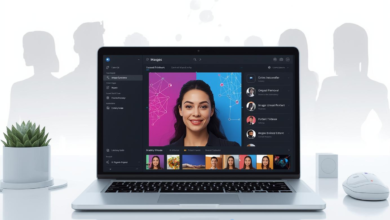
iTop online Screen Recorder allows you to capture system audio, microphone input, or both simultaneously. You can overlay your webcam on the screen recording, and it even provides options to blur or replace the webcam background, making it ideal for professional tutorials and presentations.
Gameplay Mode
The software supports hardware acceleration, which leverages your graphics card to ensure smooth recording with minimal lag. It also allows high frame rate and high-resolution recording, including 4K for users who require top-tier video quality.
Editing and Annotations
The built-in editor allows you to trim, split, merge, and annotate videos. You can add text, stickers, transitions, and highlight mouse clicks to make your recordings more engaging. This eliminates the need for a separate video editing tool in most cases.
AI Tools
iTop Screen Recorder stands out for its AI-powered features:
- Voice Changer: Apply different voice effects for creative recordings.
- Background Removal: Remove or replace your webcam background using AI.
- Compressor: Reduce file size without losing video quality.
- Denoiser: Remove background noise from microphone recordings.
Additional Features
Other handy features include a floating toolbar for quick access, customizable hotkeys, screenshot tools, scrolling screen capture, and scheduled recording for automated sessions.
Free vs Pro Version
7The free version of iTop Screen Recorder offers essential recording features, but it comes with some limitations, including a watermark and restricted access to advanced AI tools. The Pro version unlocks additional benefits such as:
- High-resolution 4K recording and higher frame rates
- Removal of watermarks
- Unlimited recording time
- Full access to AI tools
- Scheduling and auto-stop features
- Dedicated customer support
The Pro version is ideal for content creators, educators, and professionals who need advanced tools and unlimited recording capabilities.
Is iTop Screen Recorder Safe?
iTop Screen Recorder is generally safe to use, but some users have reported it being bundled with other software during installation. To ensure a secure setup, always download the program from the official website, carefully review installation options, and run a trusted antivirus scan after installing. When used properly, the software provides a reliable and functional recording experience without malware.
How to Use iTop Screen Recorder
- Select Recording Mode: Choose between full screen, region, window, or device recording.
- Enable Audio and Webcam: Adjust microphone, system audio, and webcam settings as needed.
- Start Recording: Use the floating toolbar to pause, annotate, or stop recording.
- Edit Your Video: Trim, split, merge, and add annotations or effects with the built-in editor.
- Optimize Output: Compress videos for smaller file sizes and use the denoiser to improve audio quality.
Pros and Cons
Pros:
- Easy to use for beginners and professionals
- Feature-rich with built-in editing tools
- AI-powered enhancements like a voice changer and background removal
- Hardware acceleration for smooth recordings
- Multiple recording modes, including mobile devices
Cons:
- Free version includes a watermark
- Some users report performance glitches.
- Occasional bundling with third-party software
- Advanced AI features require a Pro upgrade.
When to Use iTop Screen Recorder
iTop Screen Recorder is ideal for:
- Creating educational tutorials and online courses
- Recording gameplay for streaming or content creation
- Capturing webinars, online meetings, or live streams
- Recording mobile apps or mobile gameplay
- Making professional presentations with annotations
Alternatives to Consider
For users seeking alternatives, popular options include OBS Studio for open-source flexibility, Camtasia or ScreenFlow for professional editing, and Bandicam or ShareX for lightweight but capable recording tools. Each alternative has unique advantages depending on your specific needs.
Tips and Best Practices
- Enable hardware acceleration for smoother recordings.
- Use 60 fps for standard videos; switch to higher frame rates if needed.d
- Apply denoiser and voice effects sparingly to maintain clarity ty.
- Schedule recordings for webinars or classes to automate the process
- Export videos in widely supported formats for easy sharing
Frequently Asked Questions (FAQ)
Q1: Is iTop Screen Recorder free?
Yes, the free version offers basic recording features, but it includes a watermark and limited AI tools.
Q2: Can iTop Screen Recorder capture webcam and screen simultaneously?
Yes, you can overlay your webcam while recording the screen and even use background effects.
Q3: What video formats does iTop Screen Recorder support?
It supports MP4, AVI, MKV, MOV, FLV, TS, and GIF formats, covering most use cases.
Q4: Does the free version have a time limit?
Yes, the free version restricts recording length and watermark placement.
Q5: Is iTop Screen Recorder safe to use?
Yes, it is safe when downloaded from the official website and installed carefully without accepting bundled software.
Read More: AI video generator How Vidnoz makes pro-looking videos (and outfits) effortless